
Installing MAVIS as a Progressive Web Application (PWA)
MAVIS doesn't have a native application available in the Apple App Store or Google Play Store. Users can still create an ‘app’ like experience by installing a PWA (Progressive Web Application) from their browser. The outcome is that MAVIS can be ‘launched’ from a dock or a home screen and appear in a standalone window.
Installing the MAVIS PWA on Android
Step 1: Open MAVIS in Chrome
Navigate to MAVIS and login with your Met Office account. Make sure you can see the map view of MAVIS.
Step 2: Access the Browser Menu
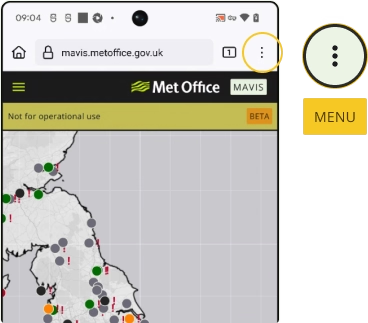
Tap on the Chrome Menu icon which appears as three dots in a vertical line: ⋮ Some older devices might have a physical menu button.
Step 3: Install the PWA
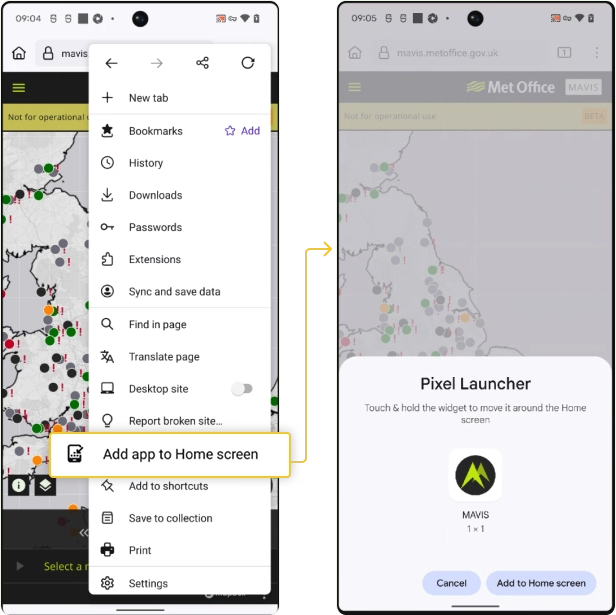
In the drop-down menu, there should be an option labelled “Add to Home Screen”. Sometimes this may appear as “install app” or “install MAVIS”.
Step 4: Confirm installation
Once clicked, Chrome will typically display a small dialog showing the MAVIS icon and name, and a button to 'Add'. In some Chrome versions, after tapping 'Add', a second prompt may ask you to place the icon manually or automatically.
Step 5: Verify installation
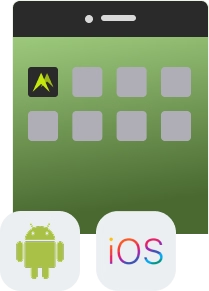
Locate the MAVIS icon on your device. The MAVIS icon will appear as below: Once located, tap the icon. MAVIS should now open in a standalone window without the URL bar.
Installing MAVIS as a PWA on iOS
Step 1: Open MAVIS in Safari
Navigate to MAVIS and login with your Met Office account. Make sure you can see the map view of MAVIS.
Step 2: Access the Share Menu
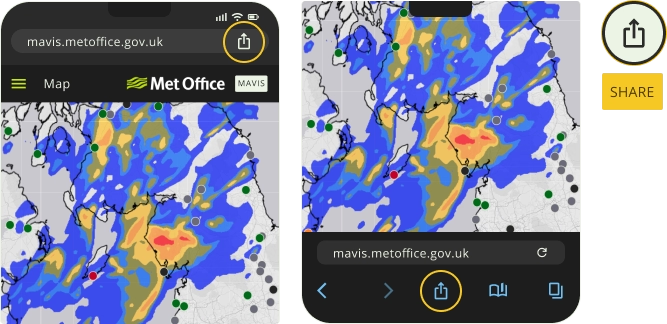
Tap on the Share icon in Safari. This icon typically looks like a square with an arrow pointing up and is either at the bottom centre or the top right of the screen.
Step 3: Find and Select “Add to Home Screen”
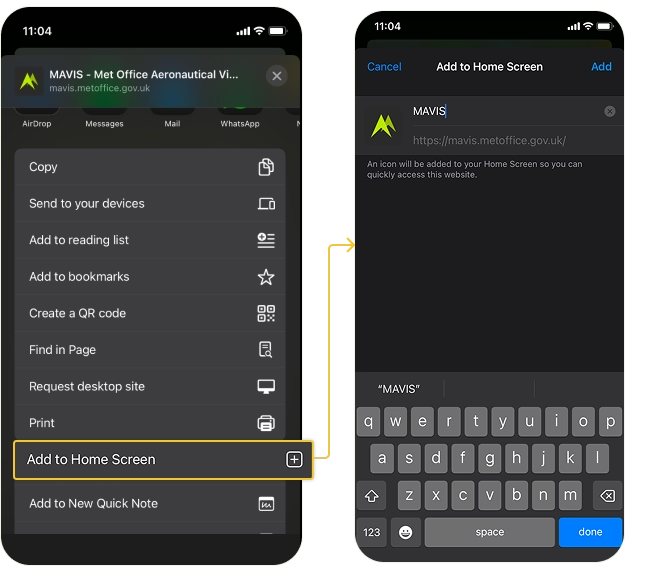
In the Share sheet that appears you must find and tap “Add to Home Screen”. On iPhone this may be further down on the share sheet. The option has an icon of a plus sign in a square.
Step 4: Confirm installation
Once clicked, a preview will appear showing the MAVIS icon and the default name “MAVIS” and the URL The name can be edited at this stage if desired (for example MAVIS Weather) Once “Add” is tapped, Safari will close the dialog and place the new icon on their home screen.
Step 5: Verify installation
Locate the MAVIS icon on your device. The MAVIS icon will appear as below: Once located, tap the icon. You will be asked to log in again as iOS treats this as a separate app and information is not shared between this app and Safari. MAVIS should now open in a standalone window without the URL bar.